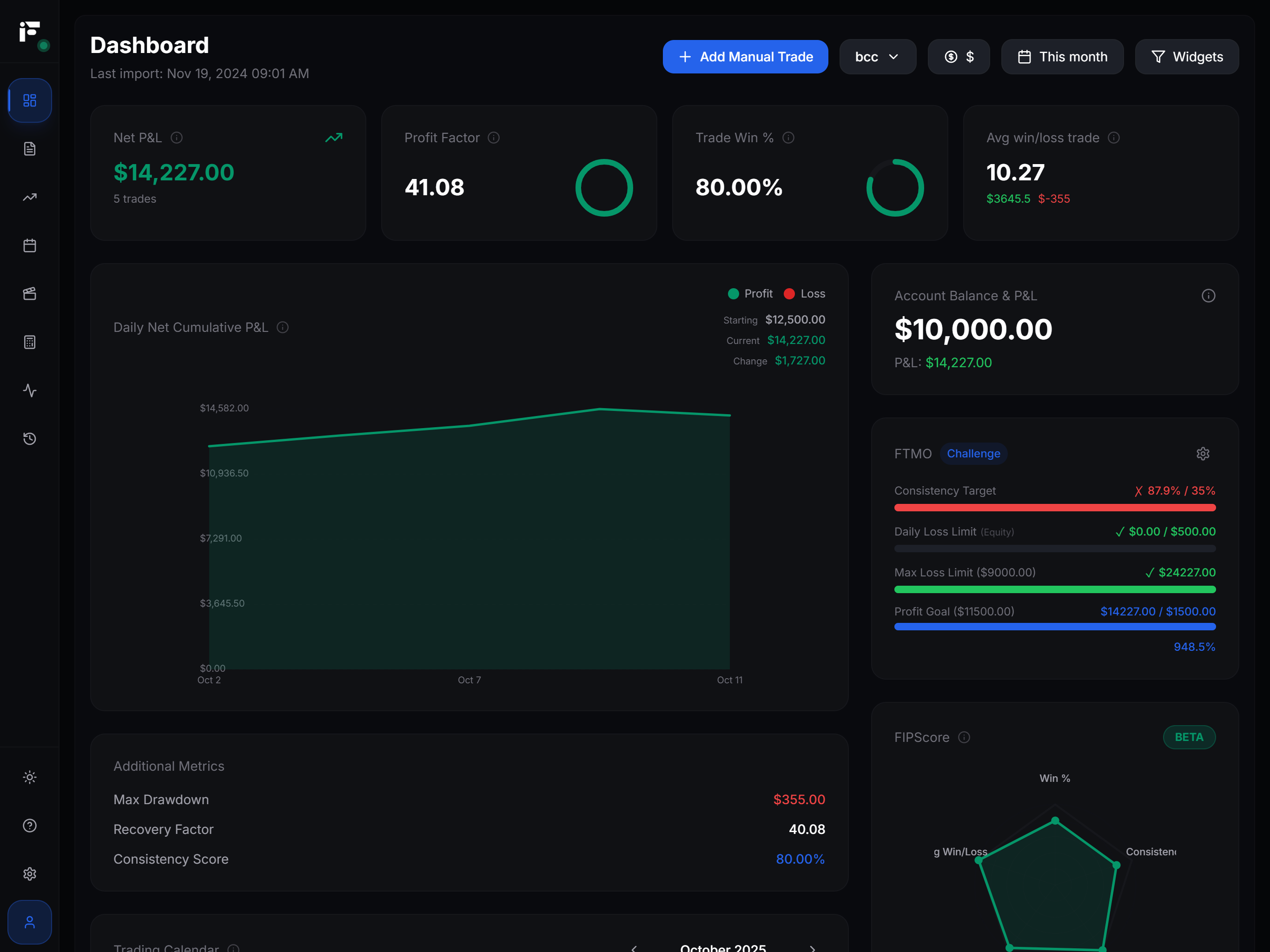
An MT5 trading journal is a record of every trade from your MetaTrader 5 account, and the cleanest way to fill it is to let the journal read your history through the account's read-only investor password, so trades arrive without manual entry and without giving anyone the ability to trade.
There are three ways to get MT5 trades into a journal: export the history report by hand, connect a journal with the investor password, or run an Expert Advisor or connector inside the terminal that sends trades out. Each one works. They differ in effort, in what they need from you and in how much access they hand over.
This guide compares all three, explains the investor password, and then covers what most pages skip: how MT5 stores trades, and the details that decide whether your journal's numbers are right or quietly wrong.
What are the three ways to import MT5 trades into a journal?
| Manual history export | Investor password sync | EA or connector in the terminal | |
|---|---|---|---|
| How it works | You save a report from the History tab and upload it | The journal logs in to your account with the read-only password and reads history | A program attached to your terminal sends trades to the journal |
| What you need | The MT5 desktop terminal, a few minutes per export | Account number, exact server name, investor password | MT5 running on a computer you control, the EA or connector installed |
| Automatic | No. You repeat it every week or month | Yes, after setup | Yes, while the terminal is running |
| Access you give | None. Only the file leaves your computer | View-only access to the account | Whatever the program can do in a terminal logged in with your master password |
| Main risk | Gaps and duplicates when export periods overlap or are missed | Sync stops when the investor password changes or the account is closed or archived | You must trust the code; the terminal must stay open |
| Best for | Occasional reviews, one-off analysis | Most traders, including prop firm accounts | Traders who already run a VPS or want data the server route does not provide |
Manual export is the most private route and the most tedious: miss a week or overlap two periods and the journal is wrong. Investor password sync reads the account from the broker's server, so your computer does not need to be on, and it cannot trade, which is the point. An EA or connector is flexible but asks for the most trust: it runs inside a terminal logged in with your master password, so only install code from a source you trust. In MT5 desktop, an EA that sends data to a web address needs that address allowed under WebRequest in Tools → Options → Expert Advisors.
What is the MT5 investor password, and what can it do?
Every MT5 account has two passwords:
- The master password (also called the trading password) gives full control: open, modify and close positions, and change settings.
- The investor password gives read-only access. Anyone logging in with it can see balance, equity, open positions and trade history. Any attempt to place, modify or close a trade is refused by the server.
It exposes your trading data, so treat it as private, but it cannot open a position or move money.
Never give your master password to a journal, a signal service or anyone offering to "help" with your account. No legitimate journal needs it. If a tool asks for it, stop.
How do you find or change your MT5 investor password?
MT5 does not display your existing passwords anywhere in the terminal. You get the investor password in one of three ways:
- From the account opening. When you open a demo account in MT5, the registration window shows the login, the master password and the investor password. Brokers usually include it in the welcome email for live accounts.
- From your broker or prop firm. Many prop firms list the investor password next to the account credentials in their dashboard. If you cannot find it, ask support where it is shown.
- By setting a new one. In the MT5 desktop terminal, go to Tools → Options → Server tab and use the Change button next to the password. The dialog lets you choose between changing the master password and the investor (read-only) password, and asks for the current master password to confirm.
If your broker or firm does not allow changes from the terminal, ask them instead. Before pasting the password anywhere, log in with it once in your own terminal: you should see your history, and trading should be refused.
Where do you find your MT5 account number and server name?
A journal needs the exact server string, not just the broker's name. Many brokers run several servers, for example something like BrokerName-Live02 and BrokerName-Demo, and an account only exists on one of them.
Places to look:
- The login dialog. File → Login to Trade Account shows the login number and a Server field with the server the account uses.
- The Navigator. Under Accounts, MT5 lists each saved account with its number and the server it belongs to.
- The terminal window title, which in most builds shows the account number and server of the connected account.
- Your welcome email or prop firm dashboard. Prop firms usually show the login, server and passwords together for each challenge or funded account.
Copy the server name exactly, including dashes, digits and capitalisation; a wrong one is a common reason a connection fails.
How do you export MT5 trade history manually?
In the MT5 desktop terminal:
- Open the Toolbox (View → Toolbox, or Ctrl+T) and select the History tab.
- Right-click inside the list and choose the period: today, last week, last month, last three months, all history, or a custom range.
- Right-click again and choose Report, then HTML or Open XML. Open XML opens in Excel and other spreadsheets; HTML opens in a browser.
- Save the file and upload or open it in your journal or spreadsheet.
The same right-click menu switches the tab between positions, deals and orders views, which count trades differently. Export all history the first time, then only new periods with no overlap, unless your journal deduplicates by deal or position ID.
What MT5 history data actually matters for a journal?
MT5 does not store "a trade" as one row, and this is where imported journals go wrong.
Deals vs orders vs positions
- An order is a request: buy 1.00 lot EUR/USD at market, or a pending sell limit at 1.0900. Orders can be cancelled and never fill.
- A deal is an execution: something that actually filled, with a price, volume, commission, swap and profit. A deal is either an entry (in), an exit (out), or a reversal on a netting account.
- A position is what you hold, built from one or more entry deals and closed by one or more exit deals. Each position has a position ID, and every deal that belongs to it carries that ID.
For a journal, the unit is the position: one idea, one net result. Counting orders adds cancelled pending orders; counting deals splits every trade into at least two rows.
How are partial closes recorded?
Suppose you buy 1.00 lot EUR/USD and scale out in two halves. The commission in this example is $3.50 per lot per side, charged on each deal; your broker's schedule may differ.
| Deal | Direction | Volume | Price | Commission | Swap | Profit |
|---|---|---|---|---|---|---|
| 1 | in | 1.00 | 1.08500 | −$3.50 | $0.00 | $0.00 |
| 2 | out | 0.50 | 1.08700 | −$1.75 | $0.00 | +$100.00 |
| 3 | out | 0.50 | 1.08400 | −$1.75 | −$1.20 | −$50.00 |
The working:
- Deal 2: +20 pips on 0.50 lot. At $10 per pip per 1.00 lot on EUR/USD, 0.50 lot is $5 per pip, so 20 × $5 = +$100.
- Deal 3: −10 pips on 0.50 lot, so −10 × $5 = −$50.
- Gross profit: $100 − $50 = $50.
- Costs: commission $3.50 + $1.75 + $1.75 = $7.00, plus swap $1.20 = $8.20.
- Net result of the position: $50 − $8.20 = $41.80.
A journal that reads only the profit column reports $50. One that treats each exit deal as a trade reports one winner and one loser. The correct record is one position, net +$41.80, with two exits. You can confirm pip values per symbol with the pip value calculator.
Hedging vs netting accounts
MT5 accounts run in one of two modes, and the history looks different in each:
- Hedging: you can hold several positions on the same symbol, including a buy and a sell at the same time. Each has its own position ID. Most forex and prop firm accounts use this mode.
- Netting: there is only one position per symbol. Buying more adds to it at an averaged price, and selling more than you hold reverses it in a single deal. A journal has to split that reversal into "close the long" and "open a short", or the round trip is wrong.
Commission and swap per deal
MT5 records commission and swap on individual deals, not as one figure per trade. Some brokers charge commission on entry and exit, some only once, and swap usually shows on the closing deal. A journal must sum these across every deal of the position, or your average winner looks larger than it is; on low-target strategies that gap can turn a negative edge into an apparently positive one. The trading performance metrics guide covers why net figures are the only ones worth measuring.
Why do symbol suffixes break your statistics?
Brokers often add suffixes to symbol names: EURUSD.m, XAUUSD.raw, NAS100.cash, US30-ECN. To MT5 these are different symbols. If you trade gold on two accounts as XAUUSD and XAUUSD.raw, a journal that groups by raw symbol name shows two instruments, each with half the sample. Map suffixed names to one base symbol before reading any per-instrument statistic.
Server time vs your local time
Trade times in MT5 history are in the broker's server time, not yours. Many forex brokers set the server to GMT+2 in winter and GMT+3 in summer, so the daily candle closes at the New York 5 PM close. Your broker's setting may differ.
Worked example: a trade opened at 15:30 server time on a GMT+3 server in summer is 12:30 UTC. For a trader in London (UTC+1 in summer) that is 13:30 local time, and in New York it is 08:30, the time of many US data releases. Read 15:30 as local time and every trade lands in the wrong session.
Prop firm rules have the same issue. FTMO's Challenge 2-Step measures the daily loss from the balance at 00:00 CE(S)T, while FundedNext Stellar resets at 00:00 server time (GMT+2/+3); both checked against the firms' official rules on 26 September 2026, so confirm on the firm's page. If you review daily results in a third time zone, your "days" will not match the firm's days. The daily drawdown guide explains how each reset is calculated, and the prop firm rules comparison lists the reset time for 12 firms.
Magic number: EA trades vs manual trades
Every order and deal carries a magic number. Expert Advisors set their own, and manual trades usually have 0. If you run an EA and also trade by hand on the same account, the magic number is how you separate the two. Without it, both merge into one equity curve that describes neither, so check whether your export or journal carries it.
Deposits and withdrawals are not trading P&L
Deposits, withdrawals, credits and balance corrections appear in MT5 history as balance operations. They change the balance but are not trades.
Example: you start the month at $10,000, deposit $2,000 mid-month and end at $12,600. Balance growth is $2,600, or 26%. Trading profit is $600, about 6% on the starting balance. A journal that computes return from balance changes reports the 26%; prop firm funding and balance adjustments cause the same distortion.
How do you connect MT5 to Fips?
Fips is a trading journal built by T2MA Labs. It is in private beta, with access through the waitlist. The MT5 connection works like this:
- In the journal, add an MT5 account.
- Enter the account number (login).
- Enter the server name, exactly as it appears in your terminal or prop firm dashboard.
- Enter the investor password, not the master password.
- Fips connects and reads your history. After that, trades and balance sync every few minutes.
With the investor password, Fips can read history but can never place, modify or close a trade. There is no partnership with any broker: the connection uses the standard MT5 read-only login that any account has.
A second route exists for traders who prefer it: a Fips MT5 connector that you install on your own computer. The supported platforms and both routes are listed on the integrations page, and what the journal does with the data is on the trading journal page. Per-symbol and per-session numbers then live in the account analysis view, which is why suffixes and time zones matter.
What about MT4, cTrader and other platforms?
MT4 connects the same way as MT5: account number, server name and the read-only investor password. Platforms that issue a read-only API key or investor-style access, such as cTrader, DXtrade, TradeLocker, Match-Trader and crypto exchanges, connect through that key, so Fips can read the history without being able to trade. CSV import is there for every platform as well, for older history or for an account you would rather not connect.
When does MT5 journal sync fail?
Automatic sync is reliable while the login stays valid. It breaks down in a few predictable cases:
- You changed the investor password. The journal still has the old one, and the next login fails. Update it in the journal right after any change.
- The prop firm archived or closed the account. After a breach, a passed phase or the end of a challenge, firms often disable the account or move it to an archive server. The investor password stops working, and no new data arrives. Keep an export of the full history before an account is retired.
- The broker moved the account to another server. Brokers occasionally migrate accounts. The old server name stops working, and you need the new one.
- The server name was typed wrong. A missing dash or digit gives a connection failure that looks like a password error.
After any bad day, check that the latest trade in your journal matches the latest trade in your terminal. If sync stopped on the day you hit a drawdown limit, the missing trades are the ones you most need to review.
Importing trades is only half the job; the value comes from what you write next to them. The guide on how to use a trading journal effectively covers that part.
Frequently asked questions
Can I journal MT5 trades automatically?
Yes. A journal can read your history with the account number, server name and investor password, or a connector in your terminal can send trades as they happen. MT4 works the same way, and platforms that offer a read-only API key connect through that key.
Is it safe to give a journal my MT5 investor password?
The investor password is read-only: the server refuses any attempt to trade with it. It does expose your trading data, so use a service you trust, and revoke access by setting a new investor password. Never share the master password.
How do I export my MT5 trade history to Excel?
In the Toolbox, open the History tab, right-click to choose the period, then right-click again and choose Report → Open XML. The file opens in Excel. Use Report → HTML if you want to view it in a browser.
Does the investor password work on prop firm accounts?
On most prop firm MT5 accounts, yes. Firms usually show the investor password in their dashboard next to the login and server. Access typically ends when the firm closes or archives the account, so export your history before that happens.
Why does my MT5 history show more trades than I actually took?
You are probably looking at deals or orders instead of positions. Each position has at least two deals, partial closes add more, and cancelled pending orders appear in the orders view. Group by position ID.
What time zone is MT5 trade history in?
Broker server time, often GMT+2 in winter and GMT+3 in summer, but it varies. Convert to UTC or local time before analysing results by session.